
AI Powered Short Form Video Editor That Stays Editable
Use AI to move faster on captions and silence cuts—while keeping full control of every cut, caption, and layer.
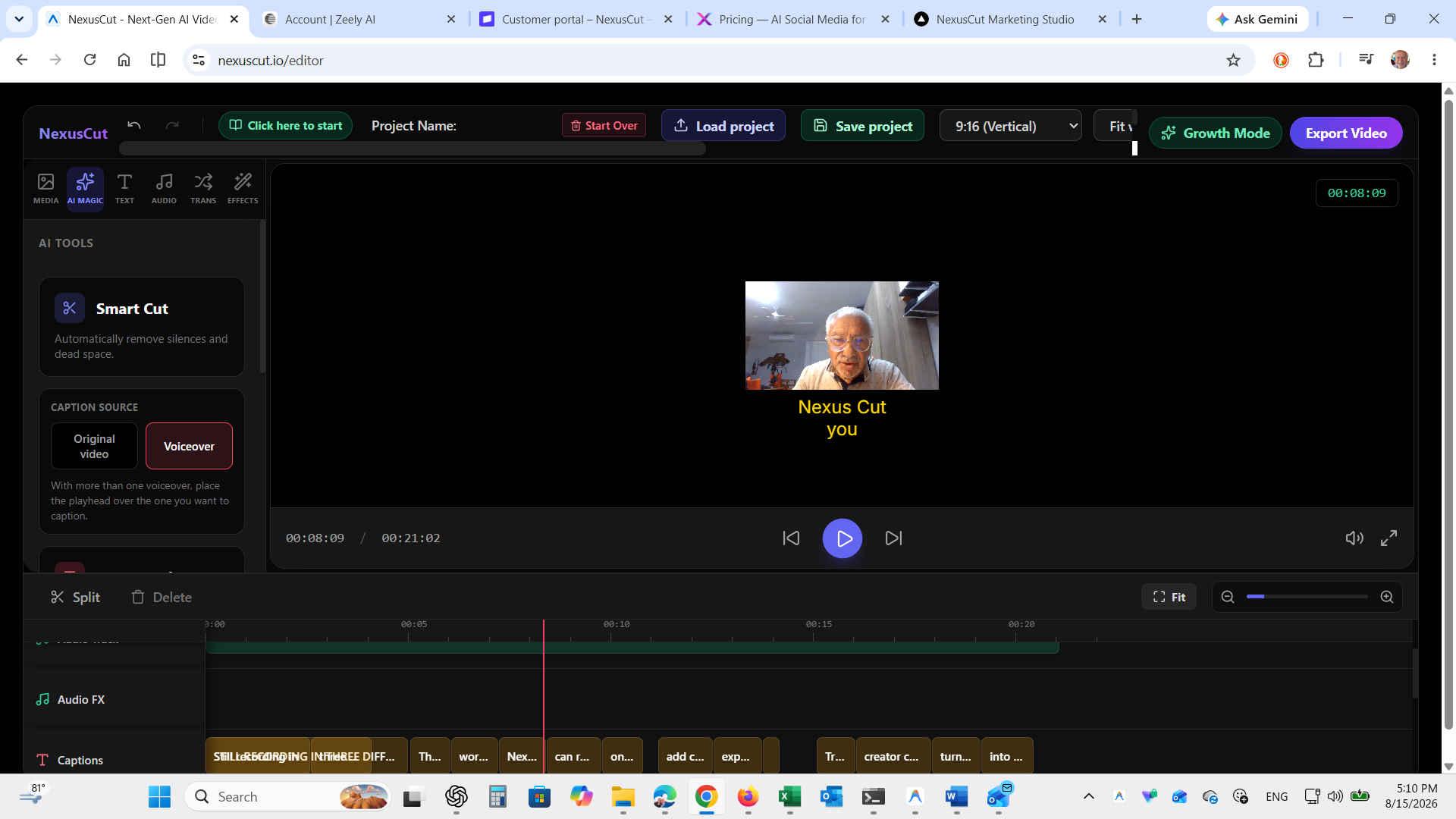
AI Powered Short Form Video Editor That Stays Editable
A raw interview, screen recording, or podcast can contain several moments worth turning into short-form clips. Finding those moments is only half the job. The real work is shaping each one into a clear vertical video without flattening your personality into a generic auto-generated template.
An AI-powered short-form video editor should remove repetitive work while leaving editorial decisions with you. For creators publishing to TikTok, YouTube Shorts, and Instagram Reels, fast output is useful—but a finished video you cannot revise is not.
What AI Should Actually Do
AI is most useful when it handles work that is tedious but not creatively defining. It can help you generate captions, identify silence and dead air, and speed up the rough edit. You should still decide what stays, what gets cut, where the text appears, and how the finished video feels.
Not every pause should disappear. A beat before a punchline can make it land; a brief pause after a complicated idea can let viewers absorb it. Auto captions can get you moving quickly, but final wording, timing, line breaks, and visual style still affect clarity.
Think of AI as an assistant editor with a narrow assignment: clear repetitive work out of the way. You remain the editor who decides what the audience sees, hears, and feels.
Why a Real Timeline Matters
Some tools offer a one-click path from a long video to a stack of clips. That can be useful for generating starting points, but it becomes a problem when a clip opens too late, cuts away context, uses awkward caption breaks, or removes a purposeful pause.
A multi-track timeline gives you a practical way to fix those choices. You can split clips around a stronger opening, trim a section, add a text layer at the right moment, place voiceover or music on a separate audio track, and control pacing shot by shot.
For a creator who posts regularly, editability is not an extra feature. It is how your videos continue to sound and look like yours.
A Better Workflow for Turning Raw Footage Into Shorts
1. Start with the strongest opening
The first line must make sense without the surrounding conversation. “That is exactly right” may work in a full interview but says nothing in a feed. Find the sentence where the speaker makes a claim, asks a useful question, or creates tension—then cut the unnecessary setup.
Do not force every clip into a dramatic hook. Educational creators often do better with a direct promise, such as: “Here is how I plan a week of social posts in 30 minutes.” The goal is clarity, not manufactured hype.
2. Use silence removal as a rough pass, then listen again
Silence removal can clean up repeated starts and dead space in a talking-head recording, podcast, webinar, or tutorial. Review the result before moving on. Keep pauses that create emphasis, separate steps, or make a story feel human.
Aggressively removing every bit of space can make speech feel rushed and captions harder to follow. The right pacing depends on the speaker, topic, and audience.
3. Generate captions early enough to edit with them
Captions are part of the edit, not decoration at the finish line. After generating auto captions, scan for proper names, product terms, numbers, and words the transcript may have misunderstood. Then look at timing and line breaks.
Use a readable font, strong contrast, and placement that does not cover a face or important screen detail. Keep a consistent style across your series, but adjust the position when the footage needs it.
4. Add visual changes only when they support the point
Short-form pacing does not require a cut every second. Use cuts to remove repetition, screen recordings when you reference a process, and text callouts when a detail needs emphasis. More layers do not automatically make a video more engaging.
For a product demo, the timeline might include the host on the video track, a screen capture layered above it, captions, and a simple text callout. For a podcast clip, a tighter crop, captions, and a few deliberate cuts may be enough.
Build an Editing System, Not a One-Off Process
Creators who publish consistently do not make every project from zero. They use repeatable decisions: a preferred vertical canvas, two caption styles, a standard intro treatment, and a simple export checklist.
With NexusCut, you can record camera or screen footage, upload video, edit in a multi-track timeline, generate captions, remove silence, add voiceover or text, and export in your browser. Save the project locally when you want to return for revisions or make another version for a different platform.
Before posting, make one final human pass: check captions against the audio, watch the first three seconds with sound off, listen for cuts that change a sentence’s meaning, and confirm key text stays in the visible area of the frame.
AI Helps You Move Faster. You Keep Control.
The smart choice is not AI or manual editing. It is using the right amount of each for the video in front of you. Let AI clear repetitive obstacles, then spend your attention on the moments viewers will remember.
Start the free NexusCut Creator Challenge to record or upload a clip, edit it on a timeline, add captions, and export your result.
Stop Reading. Start Creating.
Put these strategies into practice immediately. NexusCut gives you the tools to edit faster and grow quicker.
Start Editing Free